Tattoo simulator guide: try a design on before it's permanent
You've printed the design, taped it to your forearm and spent five minutes twisting in front of the bathroom mirror, still unsure whether it wraps too far around. A good tattoo simulator does that job better: it puts the design on a body you can turn and zoom, and shows you the angles a mirror hides. Here's how the different kinds work, and what to check.
Three ways a tattoo simulator can work
Most tools sold as a simulator, a try-on or a tattoo preview do one of three things, and each has its own blind spot:
| Kind | How it works | Good at | Blind spot |
|---|---|---|---|
| Photo overlay | You upload a photo of your arm, back or leg and place the design on it | Your real skin, your tone, your existing tattoos | One flat angle; the curve of the limb is guessed |
| Live camera | The app follows your skin through the phone camera and draws the design onto the live picture | Moving with you in real time | Light, tracking and steady hands; your own back is close to impossible |
| 3D figure | The design is mapped onto a 3D model of a body that you turn and zoom | Every angle, true scale, wrapping around limbs, big pieces | It's a model of a body, not a photo of yours |
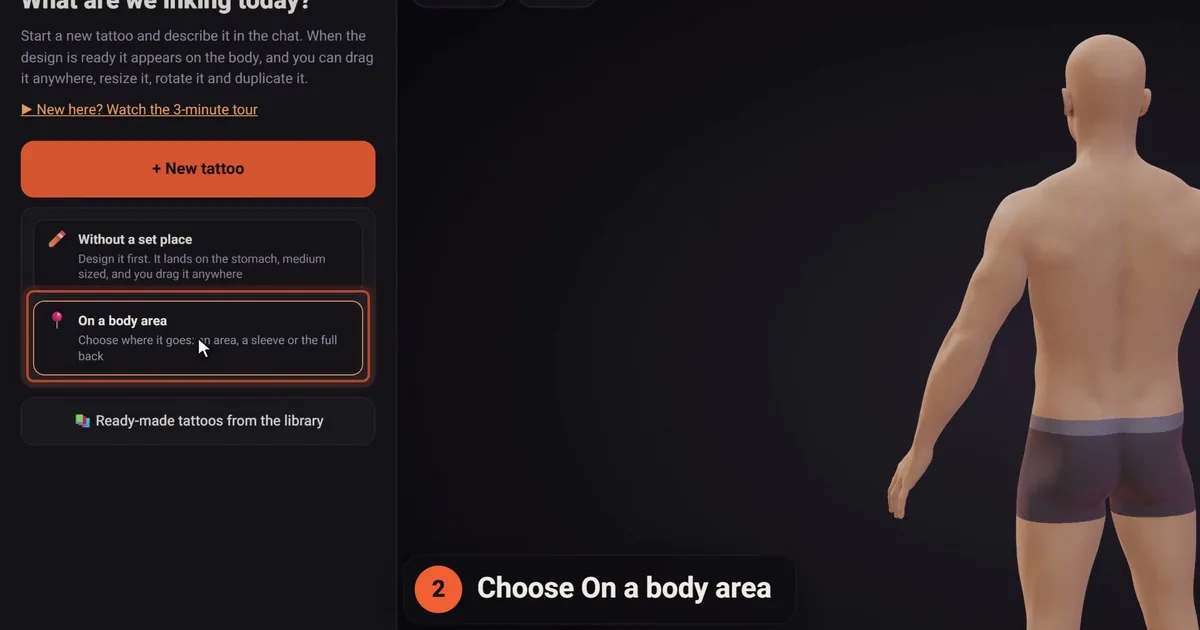
Camera try-ons are a form of augmented reality, which lays computer graphics over a live view of the real world. click2ink, the studio we make, is the third kind, and we'll be plain about it: it has no camera or AR try-on. Your design goes on a 3D figure, which you can shape to look like you.
Where a 3D tattoo simulator earns its keep
A flat photo is honest about your skin and vague about everything else. A figure you can spin answers the questions that decide whether a placement works:
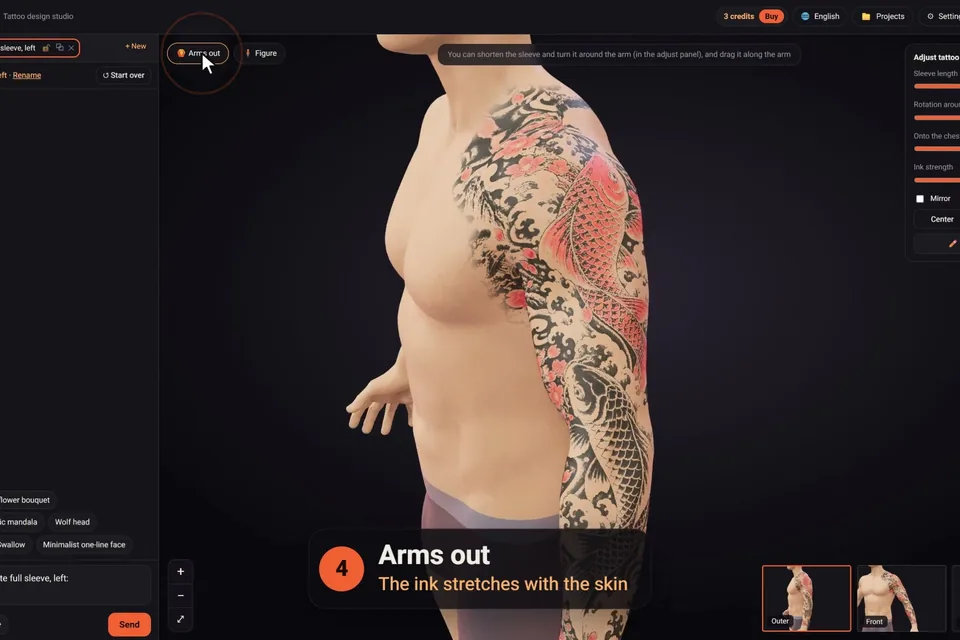
- How it wraps. Forearm pieces and sleeves bend around the limb: on a photo they look painted on, while on a 3D arm you see where the design disappears around the side. On our figure, a sleeve runs all the way around the arm or leg, and you can set its length, slide it along the limb, turn it and let it carry onto the chest or back.
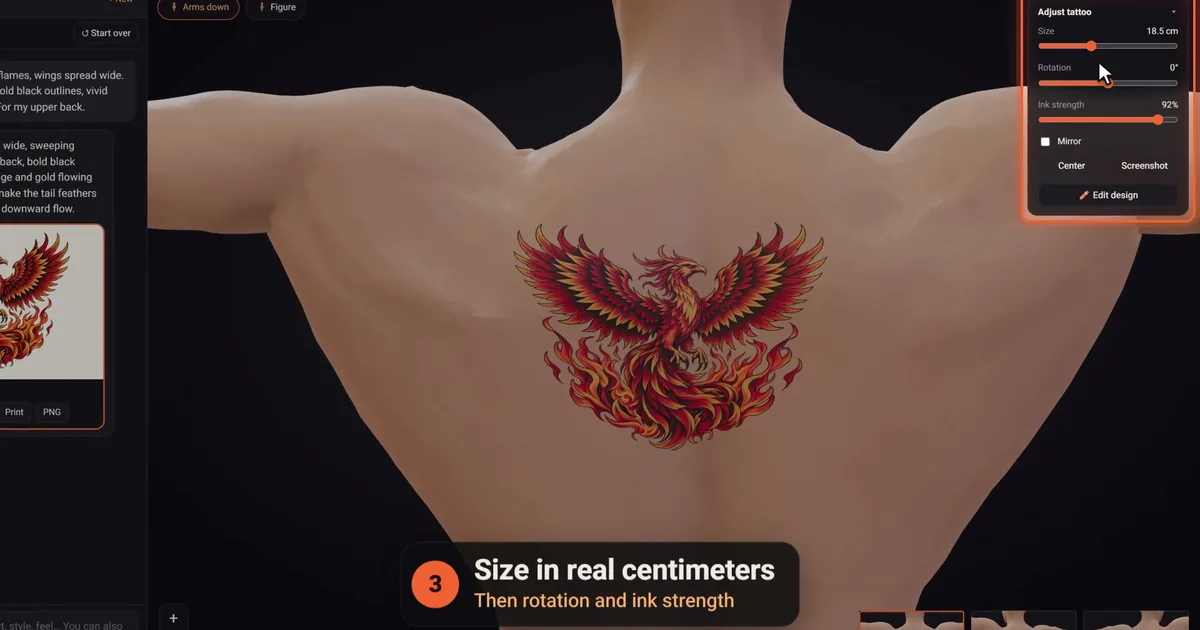
- How big it really is. Tattoo sizes are in real centimeters, sized to the figure's height, so a 12 cm design is 12 cm on that body.
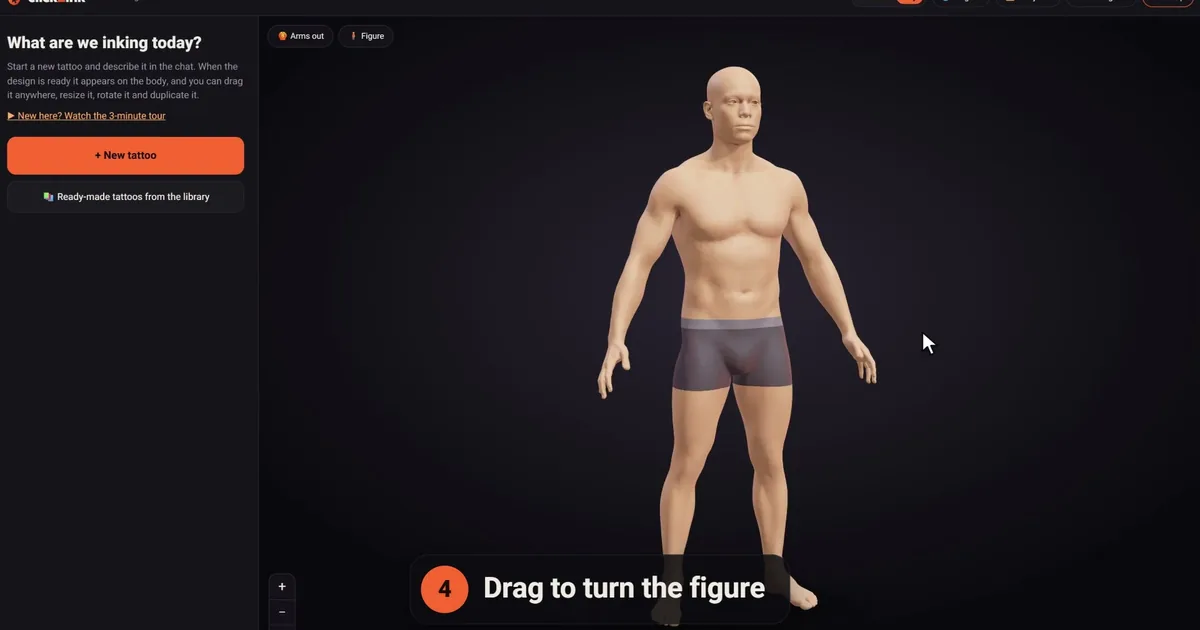
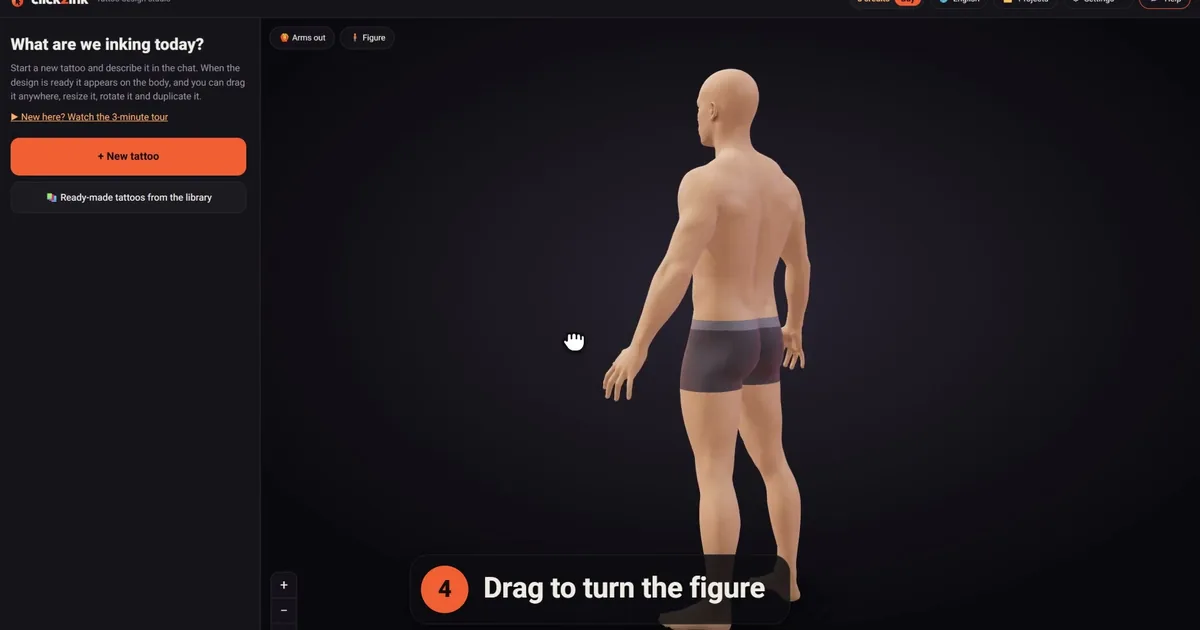
- The angles you never see. "Arms out" shows the inner arms and the sides of the body, and small views jump to each angle. Your own upper back, at last, without juggling a second mirror.
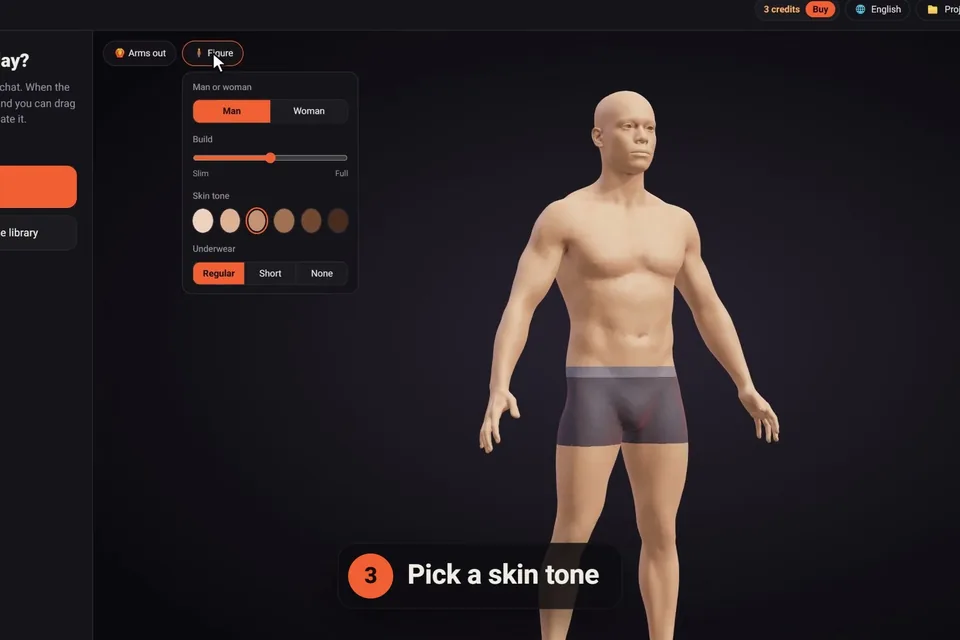
- A body like yours. Man or woman, build from slim to full, muscles, height and six skin tones. "Make it look like me" sets your height, weight, build and skin tone, and can add your face from a photo, with your hair in 3D. The face is found in your own browser and the photo itself never leaves your device; what's kept is a face picture and a few numbers for the hair, private and never sent to the AI.
- Every placement. Underwear can be Regular, Short or None for the hips, buttocks and groin, and on the woman the bra can come off for the chest and the skin under the bust.
A ten-minute test drive
Whatever simulator you use, run the same routine before you decide. It takes ten minutes and catches most placement surprises.
- Start from across the room. If the design turns into a smudge at conversation distance, it needs bolder shapes or more size.
- Turn a quarter. Forearm, calf and rib pieces change the most from the side. Check that the main subject still faces where you want.
- Put the arms out. Inner-arm and rib pieces stretch and shift with the skin. Look for parts that vanish toward the armpit.
- Check the size against something you know. Compare it with the figure's hand, then hold a ruler against your own arm.
- Preview on your skin tone. Pick the closest tone, and try the ink strength slider to compare a bolder and a softer look.
- Mirror it. Flip the design or move it to the other side. Left and right rarely feel the same.
- Sleep on it. Take a screenshot and look again in a few days. A design you still want next week is a good sign.
What no tattoo simulator can tell you
A preview is a planning tool, and an honest one admits its limits. It can't show how your skin will heal, or how much the lines will soften over the years; no filter predicts that, so choose a size and a level of detail that leave room for it. It doesn't know your scars, stretch marks, moles or skin texture, all of which change how a design sits. And it can't show the artist's hand: two artists tattooing the same drawing produce two different tattoos.
Nor can it tell you how a spot will feel. Questions about pain, healing or a skin condition belong with your artist and, where needed, a doctor.
Low-tech try-ons that still help
Pair the screen with something on your actual skin:
- Print the design at its real size, cut it out and tape it on. You'll notice where it sits as you move, sit and reach.
- Wear it as a temporary tattoo: printable temporary tattoo paper lets you live with the design for a short while. Skip "black henna": the FDA's fact sheet on temporary tattoos and henna warns that the dye often used to darken it can cause dangerous skin reactions in some people, and it notes reports of reactions to some decal-type temporary tattoos too.
- Trust the stencil on the day. Before tattooing, the artist puts the stencil on your skin and you check it in the mirror. It's the most accurate try-on there is, and it's fine to ask for it to be moved.
From the simulator to the studio
When the placement feels right, turn it into something your artist can use. In click2ink, a share link opens a page with just the figure and its tattoos in 3D, without your chats; anyone with the link can open it, and you can update or revoke it. Add the PNG and a true-size print, and the consultation starts from facts instead of guesses.
Still deciding where it should go? Our tattoo placement guide weighs each spot, and the tattoo size guide explains how big a design must be for its detail. The how it works page follows the studio from the first message to the share link.
Tattoo simulator FAQ
Is there a tattoo simulator that uses my phone's camera?
Yes, several try-on apps draw a design on your skin through the camera in real time, and others work from a photo you upload. click2ink does neither: it shows the design on a 3D figure you can turn, shaped to your height, build and skin tone. That's better for backs, sleeves and true scale, and worse for seeing your actual skin.
How accurate is a tattoo simulator?
Accurate enough for placement, scale and overall look, not for fine detail on your own skin. Photo tools show your real skin but guess the curves; 3D tools get the angles and size right on a model body. None can show how lines will settle as the tattoo heals and ages, so confirm the final size and spot with your artist.
Can I try my own design in a tattoo simulator?
Most simulators accept an uploaded image. With ours, attach it with 📎 and either put your picture on the body exactly as it is, with its background removed, or ask the AI to redraw it as clean tattoo artwork first. Moving and resizing it on the figure is free, as often as you like.
Can I see a tattoo on my own skin tone?
Photo tools use your real skin. 3D simulators let you choose: ours has six skin tones, and "Make it look like me" sets your height, weight, build and skin tone in one go. Pick the closest match, then ask your artist how the shading and any color will read on your skin once it's healed.
Can I preview a full sleeve or a back piece?
That's where a 3D figure helps most, since you can't see your own back and a flat photo can't show a design wrapping around an arm. Check how a sleeve meets itself on the inner arm, where it ends at the wrist or elbow, and how it flows onto the chest or back. Our sleeve tattoo guide covers the planning.
Can a tattoo simulator show my existing tattoos?
Photo-based tools show them automatically, because they're in your photo. A 3D figure starts with bare skin, so add them yourself: photograph an existing tattoo, let the AI lift it off the skin as a clean design (one credit), and place it on the figure in its real spot and size. Then you can see whether a new piece will crowd it.
Can a simulator show how my tattoo will look in ten years?
No tool can honestly predict that. How a tattoo ages depends on your skin, the artist's technique, sun exposure and aftercare. What a simulator can do is help you choose a size and a level of detail that give the design room to age well, which matters far more than any "aged" filter.
Do I need to download an app?
Not for click2ink: it runs in the browser on computers and phones, and your projects are kept on the server, so you can start on a laptop and show a friend on your phone. Many camera try-ons are phone apps, so check what you're installing and what happens to your photos. Our guide to tattoo design apps covers the phone side.
Does a tattoo simulator cost anything?
Many have free versions with limits. In click2ink, the 3D figure, moving tattoos on the body, the library of 450+ ready-made designs, sharing and printing are all free. New AI designs use credits, and every new account starts with 3 free ones, with no card needed.